




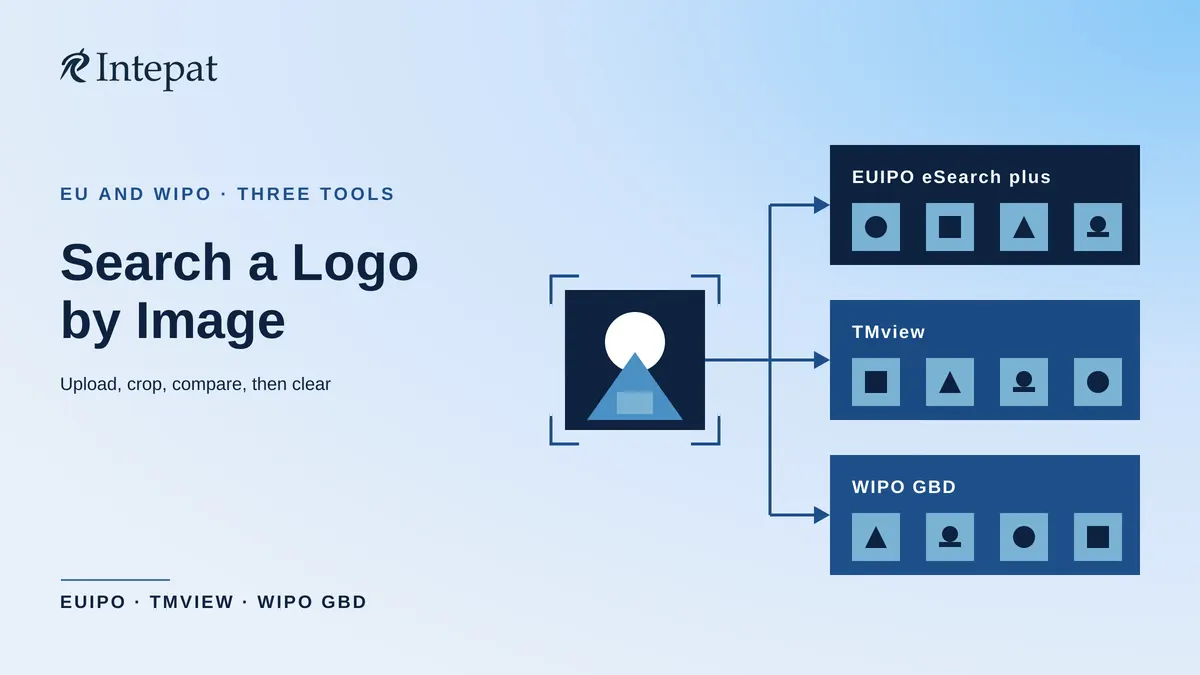
Three official tools can help with a trademark logo image search: EUIPO eSearch plus, TMview and the WIPO Global Brand Database. Each accepts an uploaded picture and returns potentially similar marks from the records it covers. Use the results as leads for a clearance search, and add Vienna code searches to catch marks that image matching may miss.
This guide covers EUIPO’s database and the multinational collections available through TMview and WIPO, rather than the Indian register, which has its own guide to public trademark search in India. These tools are useful when entering Europe or seeking protection in other markets, including through the Madrid System. A clearance search checks for earlier rights before you adopt a logo. Vienna codes classify a logo’s figurative elements. The guidance below reflects official documentation reviewed on 19 October 2026.
Quick answer: Search the complete logo and its distinctive figurative elements in more than one database. Supplement image matching with Vienna codes and searches for any word elements. Check database coverage and confirm important records on the relevant official register. Image similarity is not a legal test of confusion.
Trademark Logo Image Search: Which Tools Search a Logo by Image
eSearch plus searches EUIPO’s records, including EU trade marks. TMview aggregates data from participating trade mark offices. WIPO’s Global Brand Database includes Madrid System records and participating national and regional collections; it is not a complete worldwide register.
| Tool | How the image goes in | Useful features |
| EUIPO eSearch plus | One image for a trade mark search; JPG, PNG, GIF or TIFF | Suggested Vienna codes; lasso selection; Vienna and Nice classifications in advanced search |
| TMview | Camera icon; JPEG, PNG, GIF or TIFF; larger than 100 × 100 pixels and no more than 2 MB | Proposed red frame, or your own selection; image and text search can be combined |
| WIPO Global Brand Database | Upload an image, or use a logo already in a database record | Concept, Shape, Color and Composite strategies; cropping; additional search criteria |
Coverage differs by tool and by date. A search that finds no close result in one database does not establish that the logo is available.
Image Search in EUIPO eSearch plus
Upload a clear image and search it as a whole. Then use the selection tool to focus on a distinctive element, such as a stylised animal beside a plain tagline. The tool can suggest likely Vienna codes, which you should check before using them in a separate classification search.
EUIPO’s eSearch plus guidance recommends neutral backgrounds and a selection frame fitted to the area being searched. Shadows and other visual noise can affect results. Image search can be combined with Vienna and Nice classifications in advanced search, as well as other criteria. Nice classes organise goods and services.
eSearch plus does not replace searches of the national registers relevant to your launch. TMview provides an additional route into participating offices’ data. For word searches on the EUIPO portal, see EU trademark search at EUIPO.
Image Search in TMview
Use the camera icon to upload or drag and drop the image. Keep the proposed red frame or draw a selection around the element you want to search. You can also combine the image with a trade mark name or number. The TMview help page describes the supported formats, selection options and search restrictions.
For an ordinary logo search, leave the Colour box unticked: this control restricts the search to colour per se marks, rather than simply finding logos in similar colours.
EUIPO’s 15th-anniversary account states that image search had been implemented for all offices connected to TMview in November 2025. The same account describes TMview as connecting over 136 million trade marks from 80 countries. That is a dated total for the database, not a count of searchable logo images or a live October 2026 coverage figure. EUIPO’s anniversary account dates the introduction of image-search technology to 2017, and its 2023 notice says an in-house image search function was incorporated as of 2022. Images from the non-EU TM5 offices were integrated on 15 May 2023.
Use TMview for a broad preliminary search, then confirm potentially relevant rights, their territorial effect and current status on the appropriate official register. Coverage across offices does not establish that every record is complete or current.
Image Search in the WIPO Global Brand Database
Upload your logo, or open an existing record and select Find similar logos, then choose a search strategy. WIPO’s Global Brand Database user guide describes four image-search strategies, each of which compares something different:
- Concept: identifies concepts represented in the image using AI.
- Shape: compares shape rather than colour or concept.
- Color: considers colour and its proportions.
- Composite: looks for a similar composition; it does not perform a conceptual comparison.
Try more than one strategy. Similar concepts can be drawn differently, while similar shapes or colours may represent unrelated subjects. Crop the image to isolate a distinctive figurative element, and compare those results with the search for the complete logo.
Additional criteria include Vienna classification, owner, IP office, Nice classification and goods and services. Start broadly and narrow deliberately. If you export results, the February 2025 guide describes a limit of 180 records at a time; an export is not necessarily the entire result set. Do not narrow a clearance search solely to fit an export limit.
WIPO first introduced image search in May 2014 and announced its AI-based technology on 1 April 2019. The 2019 announcement’s figures of 45 offices and almost 38 million trademarks are historical, not current coverage figures. Its January 2021 update also describes use of the cropping tool as good practice for the best results.
Check the Data Coverage page for the participating offices and the number of records and coverage period for each collection. WIPO advises users to consider searching national and regional registers as well. For a fuller tour, see the guide to the WIPO Global Brand Database.
When Image Search Misses: Use Vienna Codes
An image search may miss a shared figurative element when the overall drawing differs. Vienna code searches provide another route to records indexed under the relevant figurative-element codes. They depend on the codes assigned and the quality of the database’s indexing, so they do not guarantee that every depiction will be found.
eSearch plus suggests likely codes for an uploaded trade mark image. WIPO’s AI-based Vienna Classification Assistant also suggests codes for figurative elements; the guide to the WIPO Vienna Classification Assistant explains the tool.
TMview’s help describes full codes in the format 00.00.00 and second-level searches such as 01.03.. It does not permit a first-level-only search such as 01., and requires a Vienna code to be combined with another criterion. A selector helps identify codes. A useful additional criterion is the target office or territory, rather than wording that could unnecessarily exclude relevant logos.
Search the relevant elements separately when a logo combines subjects, such as an animal and a star. Some records have no figurative classification, and office practices differ. The guide to Vienna codes in trademark search explains their use on the Indian portal.
Reading the Results: Shortlist, Then Clear
A similarity ranking is a search aid. Assessing legal conflict requires the marks’ overall impressions, their distinctive elements, the relevant public and the goods and services involved. Check potentially relevant records for territory, filing or priority date, owner, status and the actual specification of goods and services. Include pending applications in the review.
Do not confine the assessment to identical Nice class numbers. Related goods or services can fall in different classes, while items in the same class are not automatically similar. In the EU, marks with a reputation may also raise objections concerning dissimilar goods or services where the applicable legal conditions are met.
Mark-type filters require care. WIPO’s guide includes a separate Combined feature for records with a logo and written name. Selecting only Figurative may exclude records indexed as Combined. In TMview, the Figurative type also returns Combined and 3D marks, but French combined marks are filed under Other.
Run an initial search without a restrictive mark-type filter, then refine it if useful. Check office-specific warnings and whether the selected criteria were applied.
Record the search date, image variants, databases and filters used. If a potentially conflicting mark appears, or a launch decision depends on the result, obtain a clearance assessment for the intended territories. That assessment may require investigation of unregistered rights as well as register searches.
No close image result is a useful preliminary finding, not clearance. Word elements, translations and sound-alikes need separate searches. The clearance search strategy guide covers the wider exercise. If you are deciding whether to file a name, a logo or both, see the comparison of a word mark and a logo mark.
Frequently Asked Questions
Yes. EUIPO eSearch plus, TMview and the WIPO Global Brand Database each accept an uploaded image and return potentially similar marks from the records they cover. Each tool sets out its own upload requirements, so check them before you search. Coverage also differs, so do not assume any one tool covers every register.
No. A search that finds no close result in one database does not establish that the logo is available. Coverage differs by tool and date, image matching can miss a shared element, and word elements, translations and sound-alikes need separate searches. Treat it as a preliminary finding and obtain a clearance assessment before launch.
An image search may miss a shared figurative element when the overall drawing differs. Vienna codes classify a logo’s figurative elements, so a code search can reach records indexed under the same element where the office assigns codes. It depends on the codes assigned and the database’s indexing, so it supplements image matching rather than replacing it.
WIPO’s guide describes four strategies: Concept, Shape, Color and Composite. Each compares something different, and the guide lists them in that order without saying which to start with. Try more than one, because similar concepts can be drawn differently while similar shapes or colours may represent unrelated subjects. Compare the results with a search for the complete logo.
No. EUIPO’s anniversary account describes TMview as connecting over 136 million trade marks from 80 countries. That is a total from that account, not a count of searchable logo images or a current coverage figure. Coverage across offices does not establish that every record is complete or current.
This article is for general information and reflects official documentation reviewed on 19 October 2026. It is not legal advice. Search interfaces and database coverage change; confirm the current tools and relevant register records before relying on a search. Consult a trademark attorney for advice on a specific mark.